

Are you also tired of seeing too many background processes running in your system, slowing down your computer? And you are wondering how many background processes are normal?
There’s no exact number. The plan is to break massive programs into small pieces and execute the needed to be known as processes.
To know more about how many processes should be running on my computer and how to fix it, read this article.
See Also: Top 13 Best DNS Server For PS4 In 2024
Contents
Why Are There So Numerous Background Processes Running?
If you see many background processes running on your system, there is a reason for this. Although no specified number of background processes is expected, there is a reason for seeing many.
Windows needs to run background processes. If you want your windows to run correctly, a few processes must run in the background. You will receive all the functionality you require because the operating system has a substantial number of functions, components, and modules that you must use to access all the functionality you need. 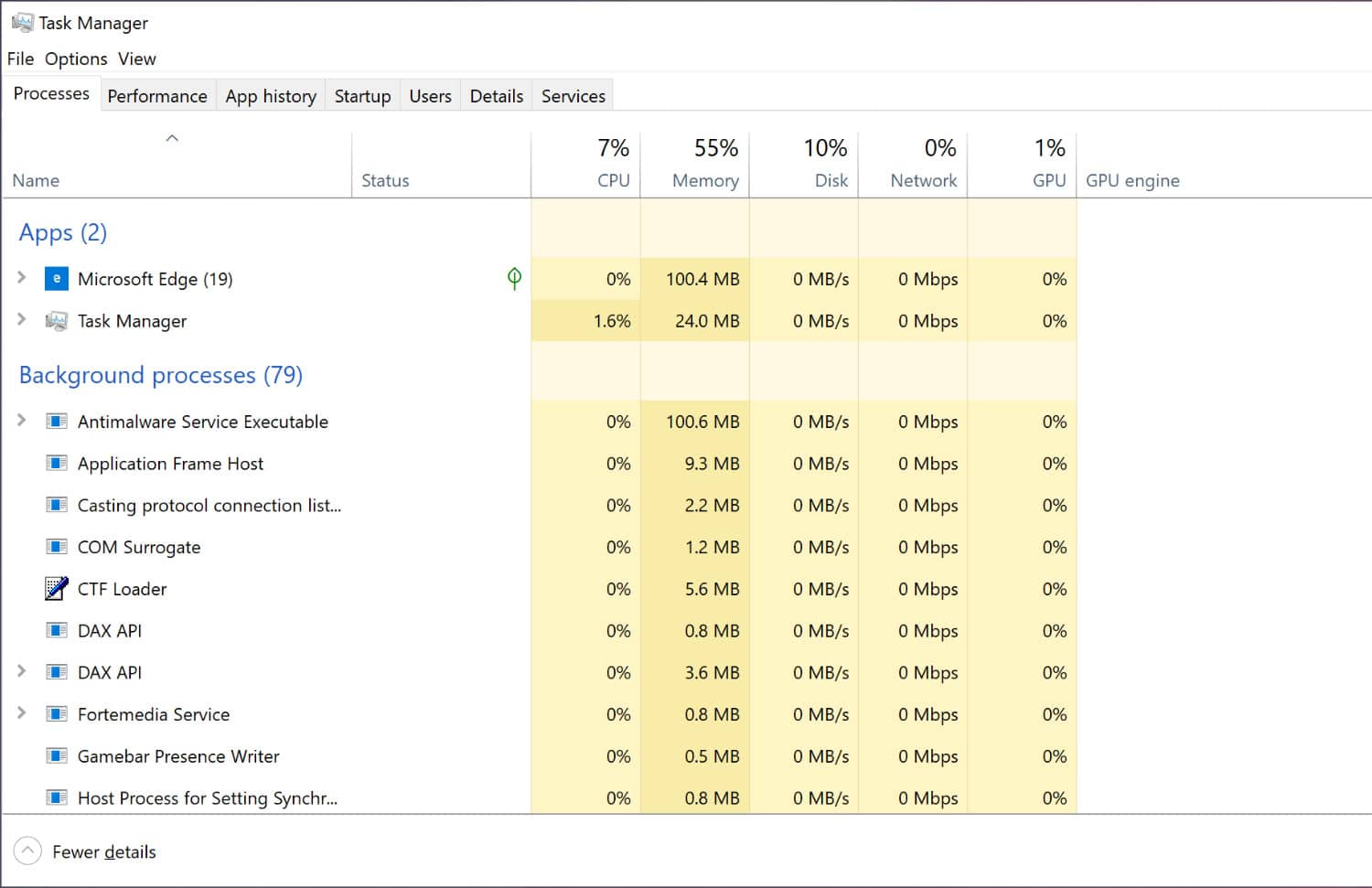
Your PC is configured to launch startup programs, and system monitors immediately. Your computer’s startup programs are launched simultaneously. As a result, they increase the number of processes operating, which slows down your computer.
The services listed in the Services pane, including those from Microsoft and other parties, often run in the background. Some third-party software that has been installed runs in the background. Therefore, ceasing services is a more effective way to reduce processes. Read this article for the best IPTV Player for Windows 10.
See Also: Windows Live Mail Won’t Open On Windows 10 [Solved]
How To Check The Background Process In Your System?
Are you curious to know how to check background processes in Windows 10? Go to the Process tab. Then, use the search option to hunt for Task Manager, or right-click the taskbar and choose Task Manager.
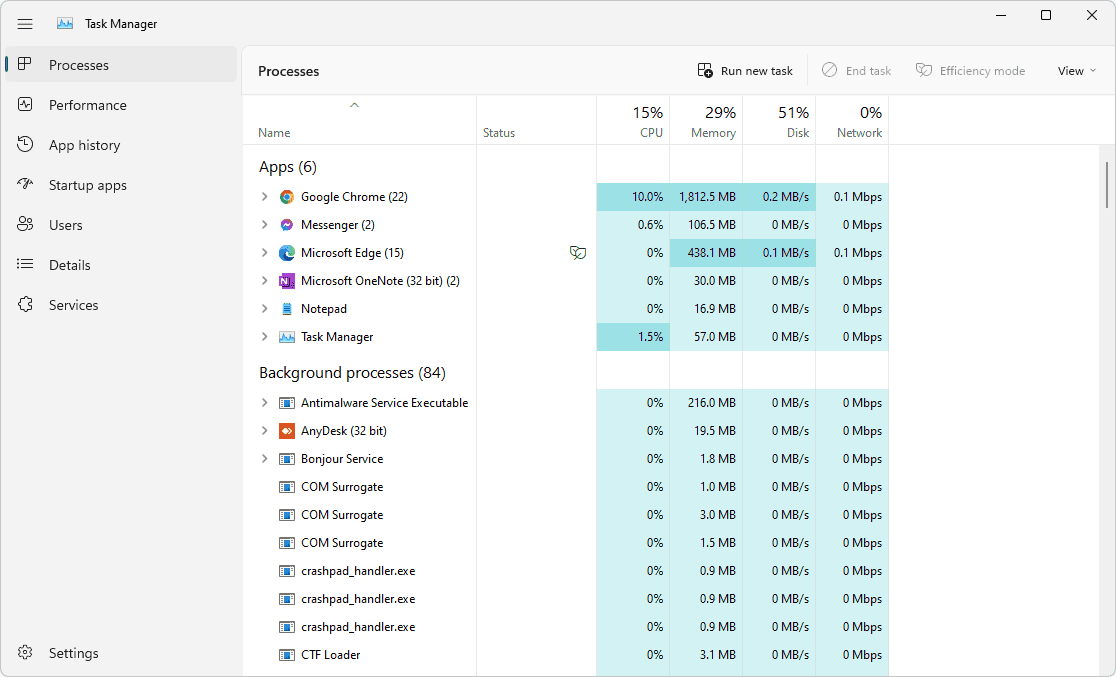
All currently active processes, including the background process, are visible. If you are facing an issue while opening file explorer, try to fix it before resolving this problem.
See Also: Limitations of Computer
How To Fix Too Many Processes Running?
Task Manager
Open the task manager similarly as you opened earlier to check the background process running in your system. In the process tab, you can end any task by right-clicking on it and tapping on the end task.
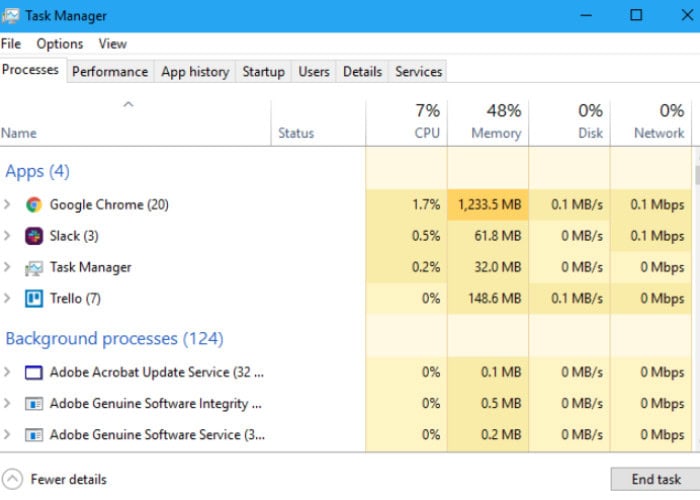
If you want to end all tasks at once, tap on the end task button in the bottom right.
See Also: Duet Display Alternative | Top 8 Apps Like Duet Display
Windows 10 Startup Processes
To remove specific system tray applications from the Windows startup, you can alternatively utilize the Windows Task Manager application. Task Manager lists many system tray launch programs under Background processes, including antivirus software. Additionally, it addresses Windows 10’s issue with too many processes.
Step 1: Press Windows + X and choose the Task Manager option to launch Task Manager.
Step 2: Click the Startup tab. Choose any system tray application you do not wish to keep in Windows startup. Click Disable. 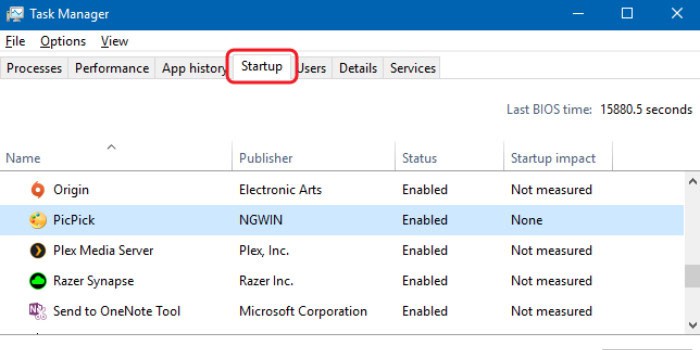
The Windows startup will no longer have it. Click here for the best Free & Paid Windows Password Recovery tools.
Third-Party Software
How many background processes are normal? Many factors affect the number of processes running on your system, including third-party software. It’s very likely to find third-party software services in the list of running background processes. After that, they can be stopped temporarily by clicking the end task button; that’s just a quick way to stop it. It will appear again in the list once you restart your computer. To fix it permanently, you must disable them from the Windows services.
STEP 1: Click Windows + R. In the run dialogue box, type “services. msc.”
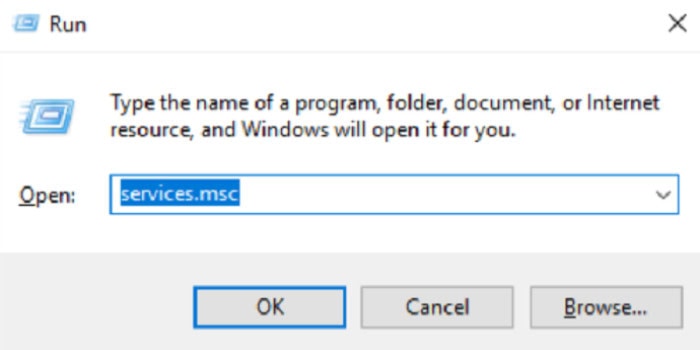
Step 2: Choose the service you want to disable. In the drop-down menu beside the startup type, choose the disabled option. Double-click on it, and properties will open. Hit ok to save changes. Want to learn Free Sound Boosters for Windows 10? Read This.
System Configuration
Suppose you find it tedious to open every third-party software and disable it by following all the steps. What if you can disable all the non-Microsoft services at once? For this, you need a Windows system configuration tool.
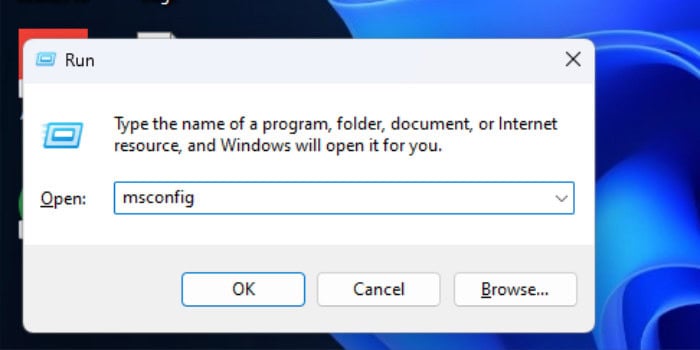
- In the run dialogue box, which you can open by pressing Windows+R, type” msconfig” to open the Windows system configuration tool.
- Then, go to the services tab and tap “Hide all Microsoft services.”
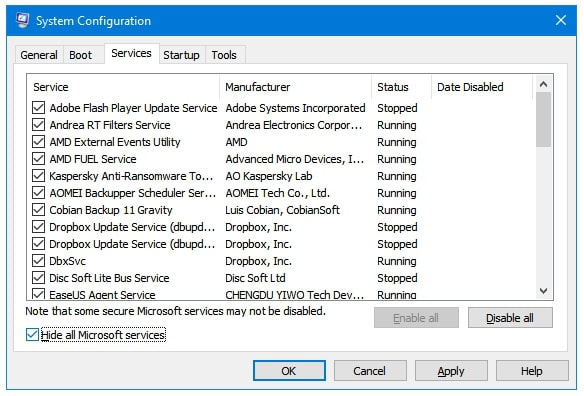
- Now, you must opt for” disable all” and proceed by clicking on apply>ok.
FAQs
How many processes should be running on my computer?
There is no right number for how many background processes are normal. The primary idea behind processes is to split large programs into small pieces, or processes, and then only run the relevant processes. It has two main advantages: it speeds up computer operation and reduces the possibility that an entire application would crash.
What should background processes be running?
There is no specific list of what processes should be running. It can differ from system to system based on hardware devices attached, software installed, differences in configuration, the way you use your system, and many more.
What will happen if I end the background process?
While utilizing the Task Manager to end a process will typically stabilize your computer, ending a process can completely shut down an application, crash your computer, and result in the loss of any unsaved data. If at all possible, it is generally desirable to save your data before terminating a process.
Is it feasible to end all background processes in Windows 10?
You can use Windows 10's system configuration tool or shut down all background processes.
See Also: Top 6 Reading Apps For Kids To Make Learning
Conclusion
To sum up, people often get shocked by seeing many background processes running. However, it is normal for a system to run over a hundred background processes. We often think about how many operations are normal. Yet, there are no actual numbers assigned for it. It is wholly based on personal data.
Nevertheless, using the earlier methods, you can always end the running background processes. This article should help you understand what causes a lot of techniques to run on your computer and how to check for and stop a lot of them. Also, you can check Best Hacking Tools for Windows.
See Also: Top 7 IOS Emulator For PC | Run IPhone Apps On Windows

Sourabh Kulesh, Chief Sub Editor at Gadgets 360. and TechiePlus, writes technology news online with expertise on cybersecurity and consumer technology.